QuickSupport on Mac
On a Mac you need to allow QuickSupport to see your screen and control the mouse and keyboard. You do this once in System Settings – here is how.
Open the downloaded file
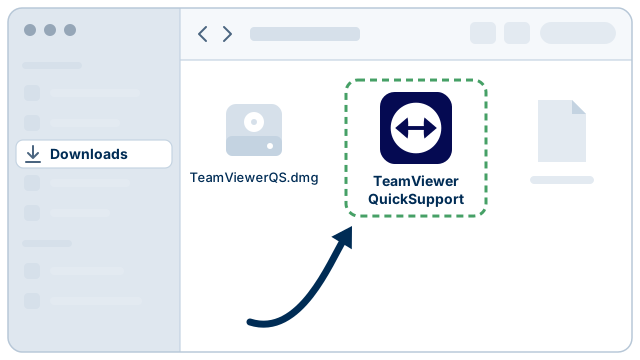
Open TeamViewerQS.dmg in your Downloads folder and double-click TeamViewer QuickSupport. If your Mac asks whether to open an app downloaded from the internet, choose Open.
See which permissions are missing
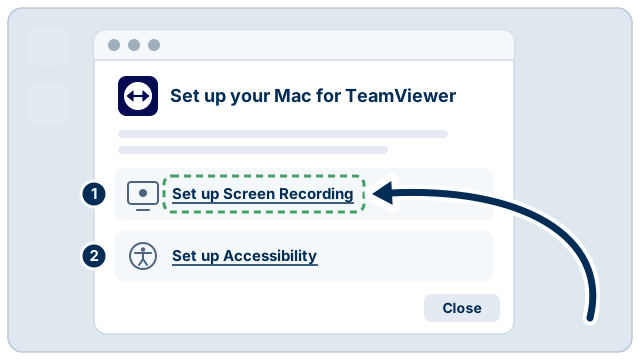
The first time QuickSupport starts, it shows the window Set up your Mac for TeamViewer. Two permissions need to be turned on:
- Screen Recording – so our support technician can see your screen.
- Accessibility – so our support technician can control the mouse and keyboard.
Turn on Screen Recording
Click Set up Screen Recording. System Settings opens at Privacy & Security → Screen & System Audio Recording (called Screen Recording on older macOS). Turn on TeamViewer QuickSupport. Your Mac may ask for your password or Touch ID.
If your Mac asks you to quit and reopen QuickSupport, do so. The app starts again straight away.

Turn on Accessibility
Go back to the QuickSupport window and click Set up Accessibility. Turn on TeamViewer QuickSupport under Accessibility the same way.

Give us the session code
When both permissions are on, you are ready. Tell our support technician the session code shown in QuickSupport and your name when we ask for it. You can see everything that happens and end the connection at any time.
The names in System Settings can differ slightly between macOS versions. If you can't find it, open System Settings → Privacy & Security and look for TeamViewer QuickSupport.