ECIT Solutions Remote Support
Use the TeamViewer QuickSupport program so our support technician can see and control your screen remotely – with your permission. Nothing is installed permanently.
Our support technician can help you remotely – with your permission.
Download QuickSupport
The download starts automatically in a moment. Save and open the file  TeamViewerQS.exe.
The download starts automatically in a moment. Then open the downloaded file.
Downloading from teamviewer.com
Download not starting? Get QuickSupport directly from TeamViewer.
The first time, you need to allow QuickSupport to see the screen and control the mouse and keyboard. See the Mac guide.
Open the downloaded file
When the file has downloaded, open it. You do that at the top right of your browser – the arrow shows where to click.
Chrome
Click TeamViewerQS.exe in the download bubble next to the address bar (2). If the bubble is closed, first click the download icon (1).
Edge
Click TeamViewerQS.exe or Open file in the Downloads panel (2). If the panel is closed, first click the download icon (1).
Firefox
Click TeamViewerQS.exe in the downloads list (2). If the list is closed, first click the arrow button (1) at the top right.
Can't find the file? It is in the Downloads folder on your computer.
How to get help
- Download QuickSupport (the file
TeamViewerQS.exe). - Open the downloaded file. The program starts without installing.
- Tell our support technician the session code shown in the program and your name when we ask for it.
- We help you remotely. You can see everything that happens and end the connection at any time.
- Download QuickSupport.
- Open the downloaded file and allow access the first time (see the Mac guide).
- Tell our support technician the session code shown in the program and your name when we ask for it.
- We help you remotely. You can see everything that happens and end the connection at any time.
- Download QuickSupport.
- Open the downloaded file.
- Tell our support technician the session code shown in the program and your name when we ask for it.
- We help you remotely. You can see everything that happens and end the connection at any time.
Get the app
You need the TeamViewer QuickSupport app from the App Store.
Open the App StoreYou need the TeamViewer QuickSupport app from Google Play.
Open Google PlayHow to get help
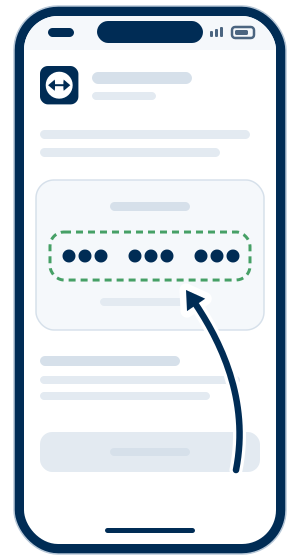
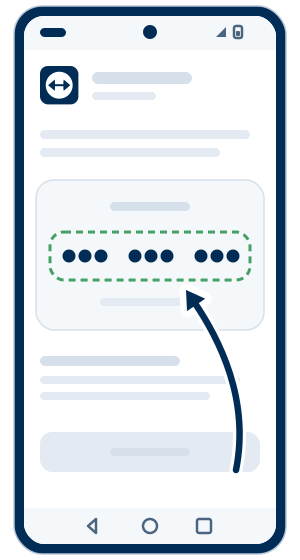
- Open the app QuickSupport.
- Tell us the code from the app and your name.
- Allow screen sharing when the app asks.
About screen sharing on iPhone and iPad
The app asks you to start Screen Recording from Control Center. We can see your screen but not control it. You stop sharing in Control Center.
About permissions on Android
Tap Allow when your phone asks whether the app may share the screen. If we also need to control the phone, the app may ask you to install an add-on and turn it on under Accessibility.